
Upload Files or Folders
- 1.Select Data Room, then All Files, and open the folder to upload into.
- 2.Select Upload Files.
- 3.Choose Choose files or Choose folder, or drop them on the dialog.
- 4.Add Tags, if you like.
- 5.Select Upload, followed by the number of files.
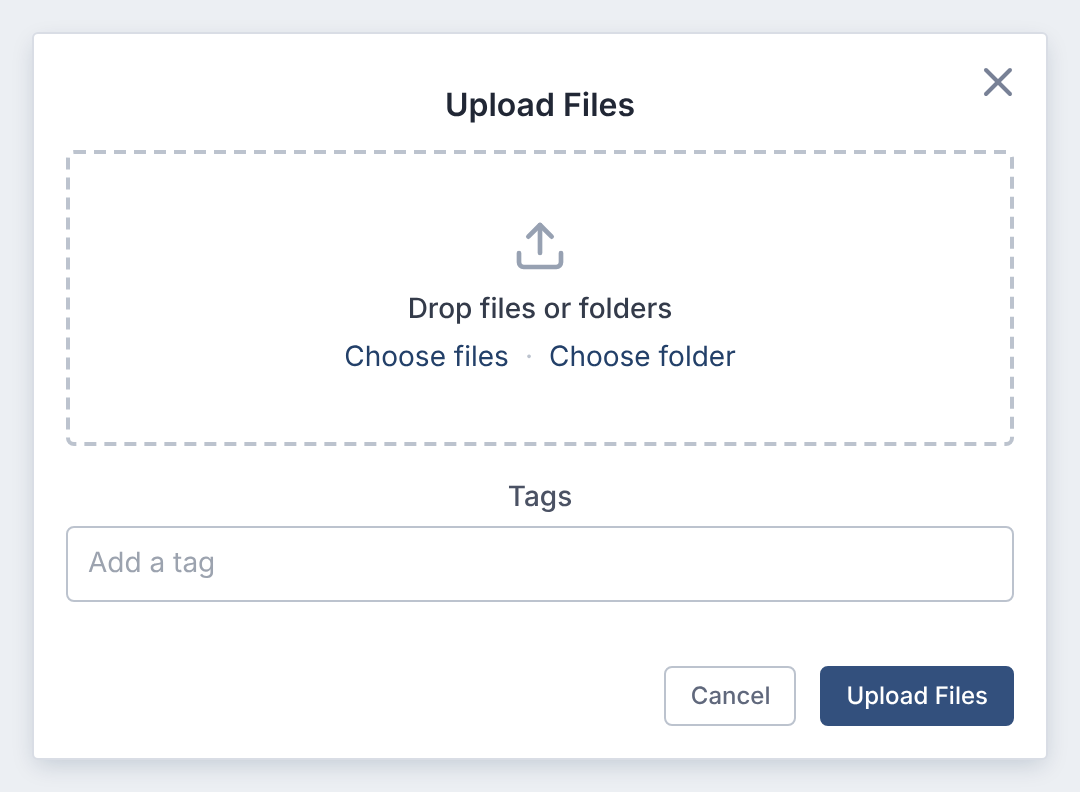
You can also drag files or folders straight onto the file list.
Subfolders are created as needed. That needs Create Folders too. Without it, files go into the open folder.
Size and File Types
- Up to 100 MB per file. Larger files show Over 100 MB and are skipped. The rest still upload.
- Any file type can be uploaded.
- Office, text and some image files get a PDF copy for viewing. The original is kept.
- Hidden and system files, such as .DS_Store, are skipped when you upload a folder.
After You Upload
- Progress shows in the bell. You can keep working.
- Each file gets its index number.
- AI review starts, if AI is on for the deal.
- Members are told about new documents, as their email settings say.
A file with exactly the same content as another is flagged as a possible duplicate in the Review Queue.
If the deal has used its AI review allowance, review waits until more is added. See Check Usage and Your AI Review Allowance.
If an Upload Is Refused
| Message | What to do |
|---|---|
| Upload completed with [n] failed files | Those files weren't uploaded. A frozen or archived deal accepts no uploads, from anyone. Or your organization may have reached its plan's storage limit. Otherwise, try them again. |
Your organization's plan includes a set amount of storage, shared by all its deals. At the limit, new uploads are refused until files are removed or the plan changes. Storage counts every stored version of every document, including the Recycle Bin and frozen or archived deals. Organization administrators see it on the Usage page.
Replacing a File
Uploading a file with the same name adds a second file. To replace one, use Upload New Version.
Questions
- Can I hold uploads back until I'm ready?
- No. A file is visible as soon as it's uploaded, to everyone with access to its folder. Upload into a folder others can't see yet.