
Step 1: Set Visibility Scopes
A scope decides which audiences a set's members can use.
Open Permission Sets, then each set in use. Under Communication → Visibility, choose one:
| Scope | Audiences its members can use |
|---|---|
| Deal-wide | Their company, if they have one; Deal team; and Only me. |
| Company | Their company, and Only me. |
| Individual | Deal team, and Only me. |
Until every set in use has a scope, Deal Settings shows Still to review and the sets' names.
Step 2: Switch On Discussions
- 1.Open Deal Settings → Communication.
- 2.Turn on Discussions.
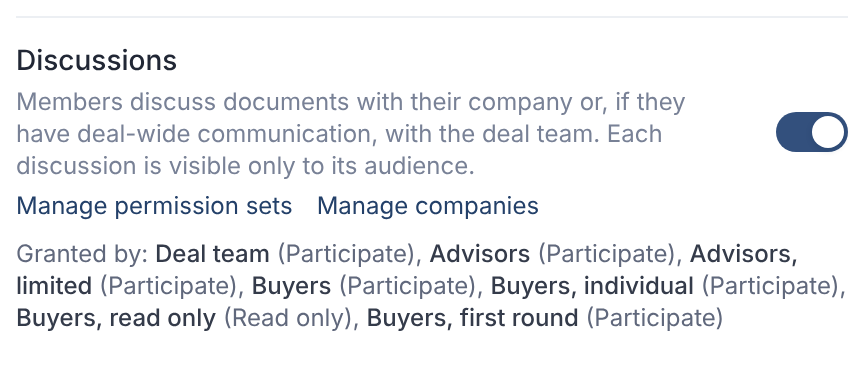
New deals start with Discussions switched on. The switch alone gives no one access.
Step 3: Grant Access in Permission Sets
In each permission set, under Communication → Discussions, choose:
| Option | What its members can do |
|---|---|
| Off | Nothing. They don't see discussions. This is the default. |
| Read only | Read discussions shared with them on documents they can open. |
| Participate | Start discussions, reply, mention people and resolve threads. |
Deal Settings then lists Granted by: with each set's name and option.
The deal owner can always take part.
Questions
- Can the deal team read a bidder's company discussions?
- No. Each discussion is visible only to its audience. That includes the deal owner.