
Download One File
Open the file and select Download, or select one file in the list and choose Download.
Depending on the folder, you get the original file or a watermarked PDF copy.
In deals with document protection, you get a protected copy instead, unless the deal team exempts the folder.
Download Many Files
- 1.In Data Room, select Export all files, or Export this folder inside a folder.
- 2.Or tick files and folders, then select Download.
- 3.Choose Entire data room, This folder and subfolders, New and updated for me or Selected.
- 4.Keep Include index numbers in names ticked to number each file and folder.
- 5.Select Prepare download.
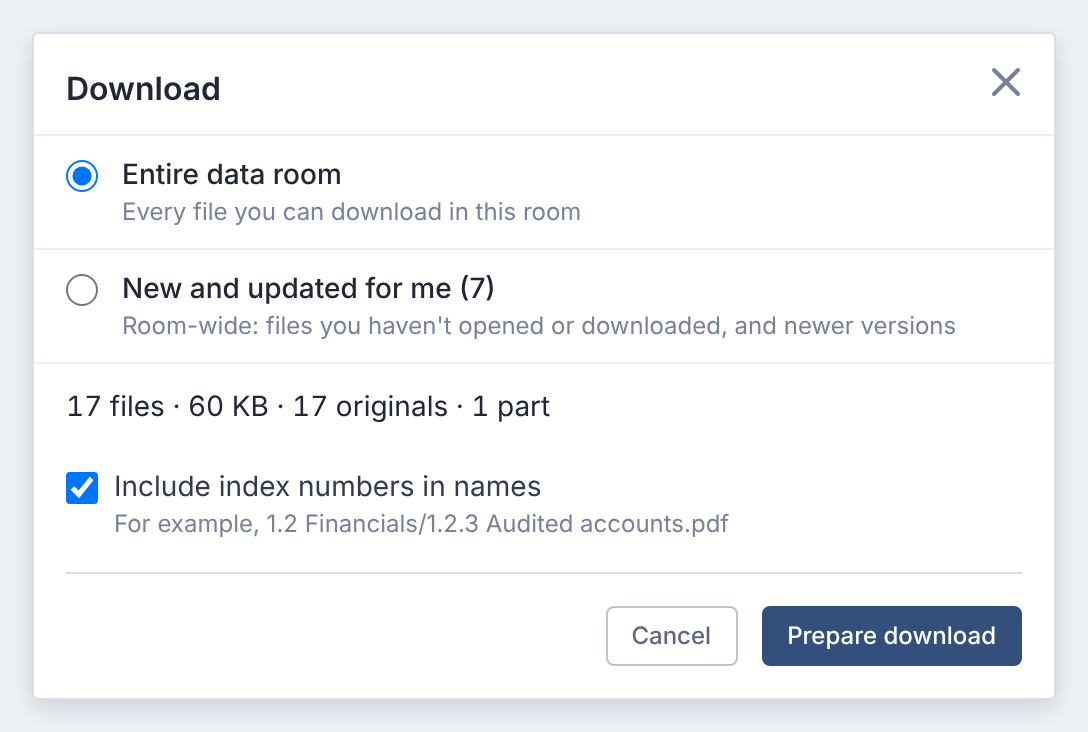
The dialog shows how many files are included, and any it can't include.
When It's Ready
- Small downloads, up to 500 files and 250 MB, start in your browser in moments.
- Larger ones are prepared on the Downloads page. If it takes over a minute, we email you Your download is ready.
- Each zip holds up to 5 GB or 3,000 files. Bigger downloads come in parts.
- Download links last 72 hours. After that, select Rebuild on the Downloads page.
You can have 3 downloads in progress at once.
The Downloads Page
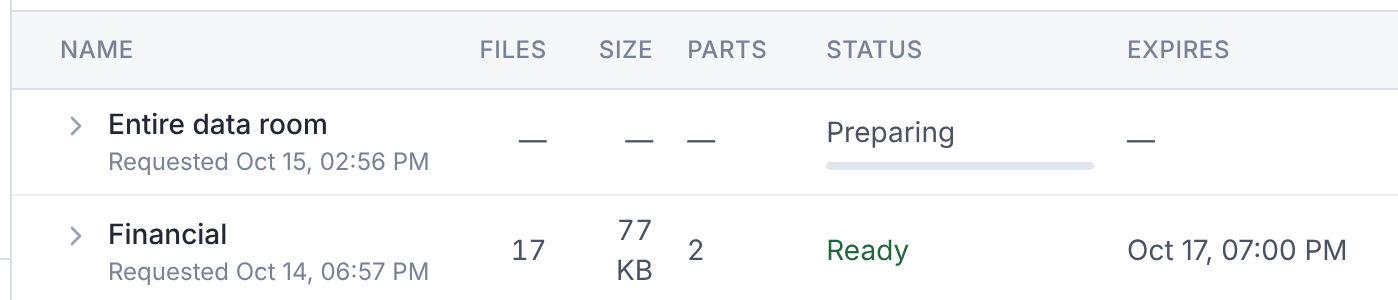
Select Downloads below the folder tree. It lists your downloads, with their status and expiry.
Select a download's row to show its parts and download each one. Select Cancel to stop one that's still being prepared.
Access changed means your access changed after it was prepared. Select Rebuild.
What's in Each Zip
Every zip has INDEX.csv, listing every file in the whole download and its part.
If something couldn't be included, NOT_INCLUDED.csv lists it and says why. View-only and protected documents are left out.
If You Can't Download
- No download option? Your access for that folder doesn't include downloading.
- You already have 3 downloads in progress. Wait for one to finish, or cancel one.
- This download link has expired. Rebuild it from the Downloads page.
Bulk downloads also stop while a deal is frozen or archived. If billing froze the deal, its owner and its deal and organization administrators can still download in bulk.
Questions
- Is every download recorded?
- Yes. The deal team can see who downloaded what, and when.