
Search
- 1.Select Data Room in the sidebar.
- 2.Type in Search documents, then press Enter.
- 3.To search only the folder you're in, select Filters at the end of the box, then This folder.
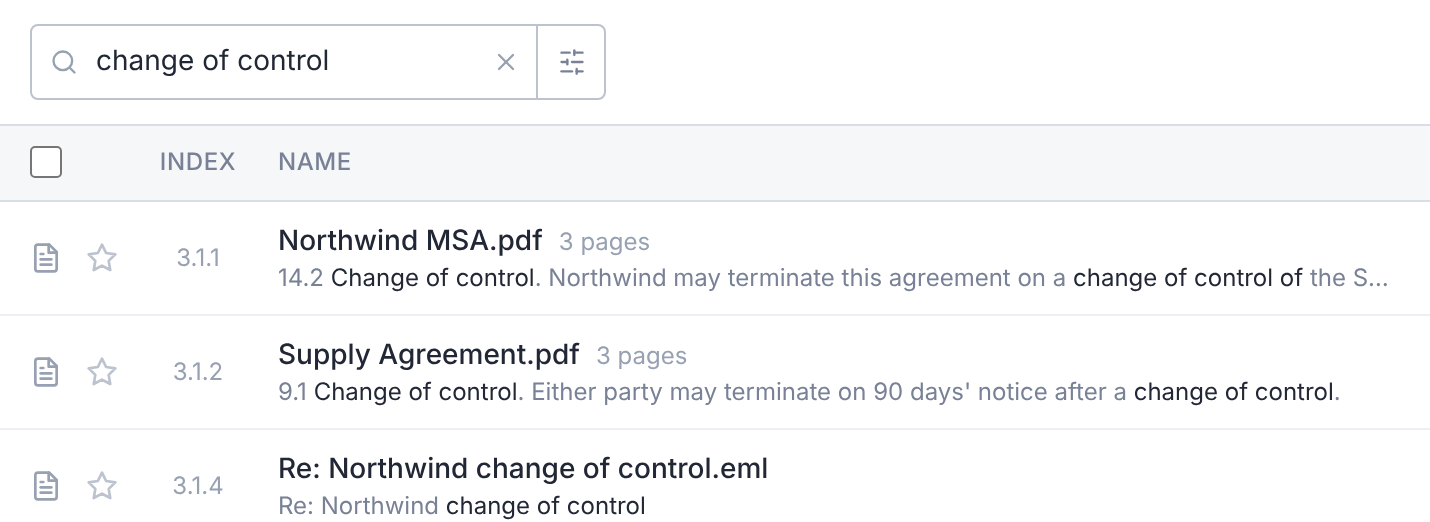
When your words appear in a document's text, the matching passage shows under its name.
Clear the search with the X, or press Escape.
Filters apply to search results too. Search for a term, then use Filters to narrow the hits.
What Search Covers
- Index numbers, such as 3.2.1.
- File names, and the titles AI gives documents.
- AI summaries.
- The text of every page, including scanned PDFs read by text recognition.
It searches each file's current version, once it has been processed.
What It Leaves Out
- Folder names. Browse the folder tree instead.
- Files in folders where you see names only.
- Files you can't see. Search never shows them.
Search shows up to 200 results, best match first.
Search Tips
Use distinctive words: party names, defined terms or amounts.
For questions such as "which contracts have a change of control clause?", ask the Assistant. It reads the documents and cites them.
Find Words Inside a Document
In the viewer, select Find in document, or press Ctrl + F (⌘ + F on a Mac).
Find doesn't work in images, video or audio.