
Change How Often You're Emailed
- 1.Inside the deal room, open your name at the bottom of the sidebar, then User Settings.
- 2.Find Email notifications.
- 3.For each row, choose Immediate, Hourly, Daily, Weekly or Off.
Your choice saves at once. A dot marks a row you've changed from the deal's default.
Each deal has its own settings. Change them in each room you belong to.
What Each Row Covers
You see only the rows that apply to your access.
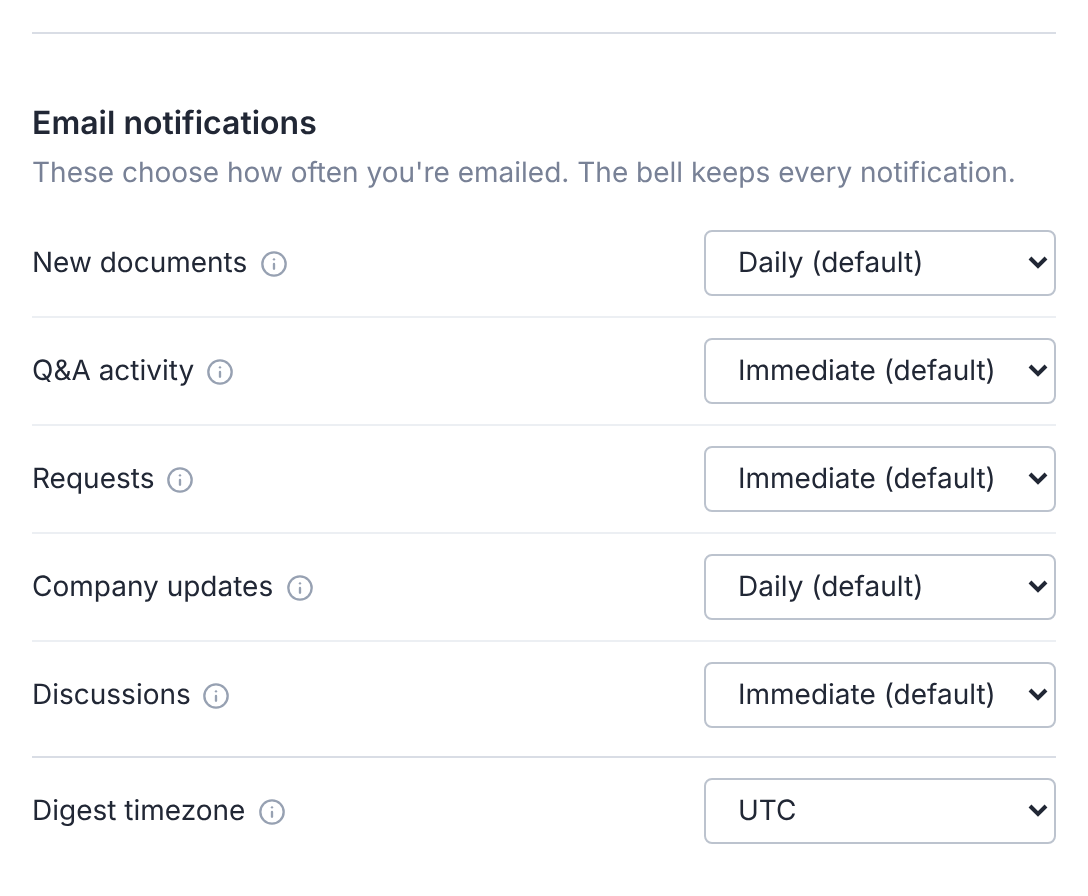
| Row | Emails about | Usual default |
|---|---|---|
| New documents | Documents added to the data room | Daily |
| Q&A activity | Questions, answers and clarifications | Immediate |
| Requests | Document requests and their outcomes | Immediate |
| Admin alerts | Invitation acceptances, first sign-ins, deletions, storage alerts and high-severity Signals | Immediate |
| Company updates | Someone joining your company in this deal | Daily |
| Discussions | Mentions, and replies in discussions you're in | Immediate |
The deal team can set different defaults. The first choice in each list shows the default, such as Daily (default).
Below the rows, Digest timezone sets the time zone your digest emails are scheduled in.
When Emails Are Sent
- Immediate: Q&A emails go at once. Document, discussion and alert emails are grouped: sent 2 minutes after the last change, within 15 minutes of the first.
- Hourly: at the top of the next hour.
- Daily: once a day, at 8:00 in your time zone, unless the deal team chose another hour.
- Weekly: Mondays, at the same hour.
- Off: no email. The bell still shows each notification.
Set your time zone in Digest timezone, below the rows.
The Notification Bell
The bell sits at the bottom of the sidebar, above your name. A count shows what's unread.
Select it to see Unread and All. Select a notification to open it and mark it read, or select Mark all as read.
The bell also shows uploads, downloads and AI review in progress. Notifications are kept for 90 days.
Take a notification, or a finished upload, download or AI review, off the list with its Remove icon. All also has Clear all.
If Notifications Are Turned Off
Notifications are turned off for this deal by its administrators. means the deal team has silenced every email and the bell for this deal.
Questions
- How do I stop all emails from a deal?
- Set every row to Off in that deal's User Settings. Invitations, security notices and download emails are still sent.
- Why do I get new-document emails right away when the default is Daily?
- Your inviter may have chosen Immediate for you. Change it in User Settings at any time.