
Set Default Frequencies
- 1.Open Deal Settings → Notifications.
- 2.Under Default email frequency, choose Immediate, Hourly, Daily, Weekly or Off for each category.
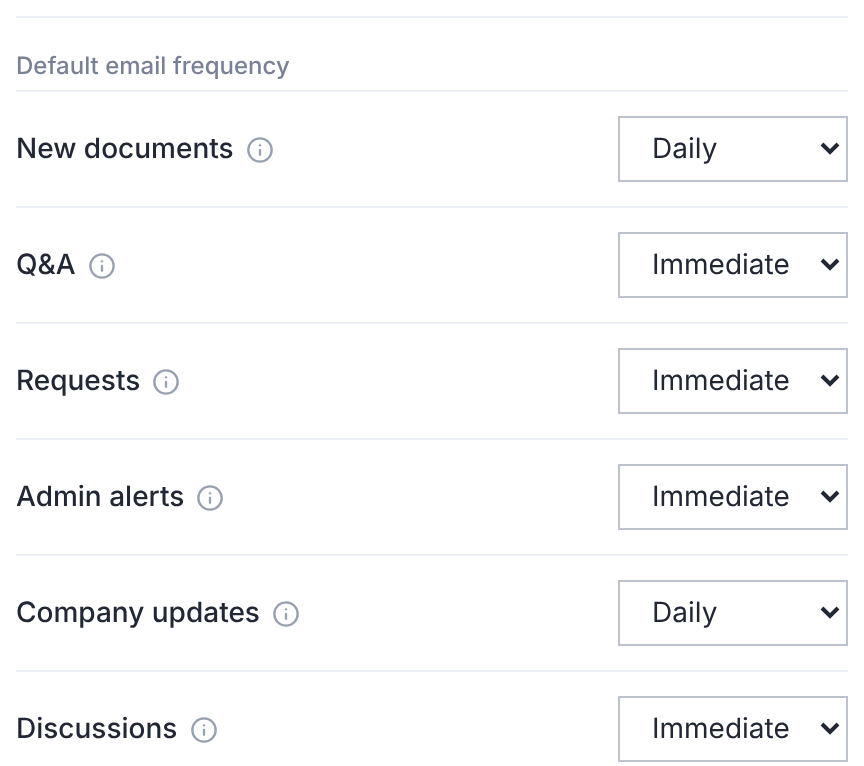
The defaults are Daily for new documents and company updates, and Immediate for the rest.
A member's own choice in User Settings always wins. A permission set can also suggest defaults, under Notification defaults.
Choose the Digest Hour
Set Digest send hour. Daily and weekly digests go at that hour in each recipient's time zone.
It starts at 08:00.
Set a Storage Alert
Enter a size in GB in Storage alert threshold. The owner and user managers are alerted when the room passes it.
Leave it empty for no alert.
Choose at Invitation
When you add people, New document emails sets how often they hear about new documents.
It starts at Immediately (grouped). That becomes their own setting, ahead of the deal default.
Silence a Deal
Turning off Enable notifications stops every email and bell alert for every member of the deal.
Members can't turn it back on for themselves. Use it only when a deal must go quiet.