
Item Statuses
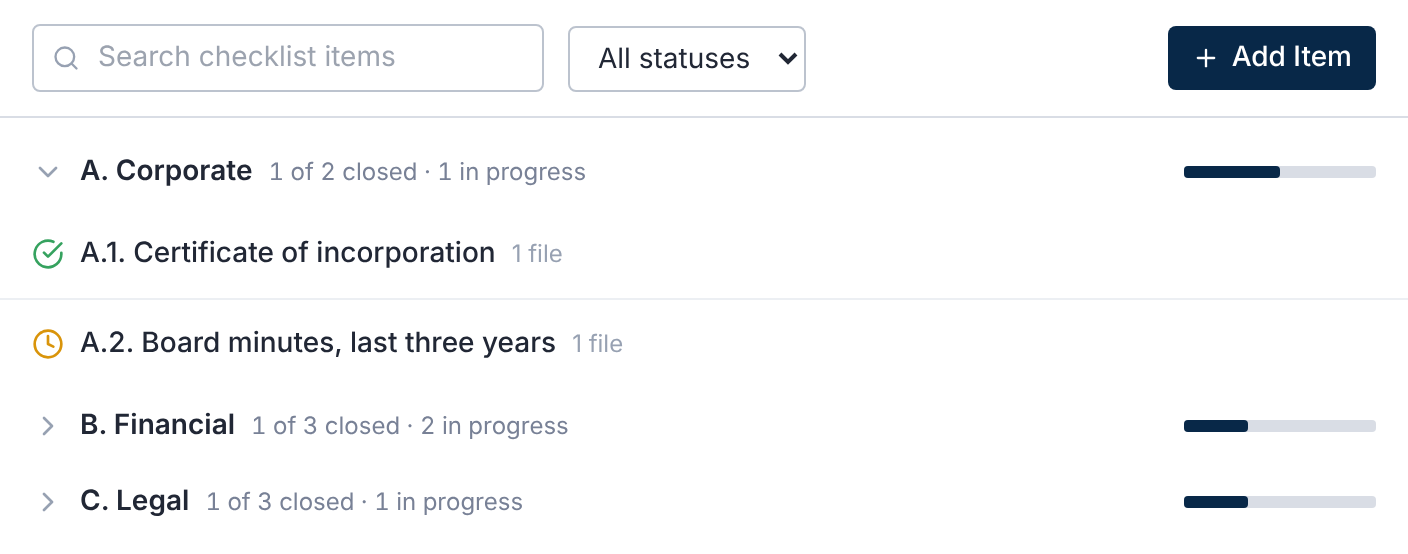
| Status | What it means |
|---|---|
| Open | No files attached yet. |
| In Progress | At least one file attached. |
| Closed | Someone marked it closed. Items never close on their own. |
Build the Checklist
Use Add Category and Add Item. Categories are lettered, and items numbered within them: A.1, A.2.
A new deal can start from a request list template, chosen when the deal is created.
Attach Files
Open an item, then select Attach Files. Link existing files, attach a folder, or upload new files.
Or select the Attach files icon on the item's row.
Accept AI Matches
With AI on, each item shows Recommended Files.
Each suggestion reads Strong match, Possible match or Weak match. Select Accept to attach it, or dismiss it.
A file is attached automatically only when it clearly fits one item. It needs a score of 80 or more, 20 points ahead of the next.
A new item automatically picks up files scoring 90 or more. Automatic matches never close an item.
Close and Reopen Items
Select Mark Closed on the item, or tick several and select Mark Closed. Reopen Item reverses it.
Only items with no attached files can be deleted.
Who Can Do What
| Permission | Allows |
|---|---|
| View Checklist | See the checklist. |
| Assignment | Attach files, including recommended ones. |
| Accept | Accept and close items. |
| Edit Checklist | Add, edit and delete categories and items. |
Questions
- Can other bidders see our checklist?
- Anyone with View Checklist sees its items. Keep bidder-specific wording out of item names.