
Add People
- 1.Select Users in the sidebar, then Add Users.
- 2.In Users, type email addresses separated by commas. Or drop a CSV file anywhere on the form.
- 3.Choose a Permission Set. It decides what they can see and do.
- 4.Choose a Company, or + Add new company. It decides who they can see in the deal.
- 5.Add a Personal note if you like, up to 1,000 characters. It goes in the invitation email.
- 6.Select Add users.
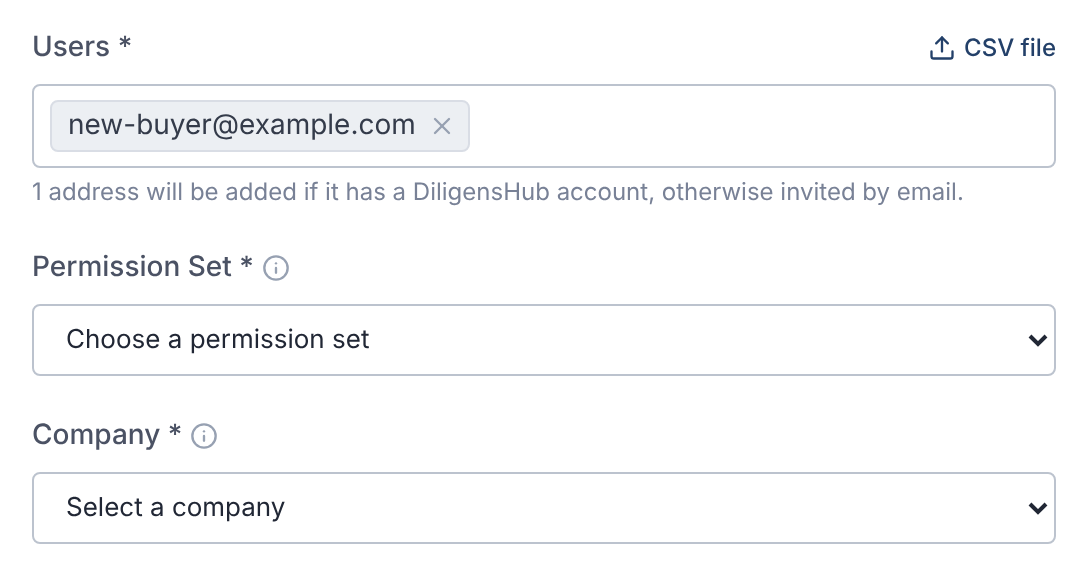
The same set, company and note apply to everyone you add at once.
Optional Settings
| Field | What it does |
|---|---|
| New document emails | How often they hear about new documents. It starts at Immediately (grouped). They can change it. |
| Access Expiration | Never, or an end date for their access. See Set an Access End Date. |
| Assign to Groups | Adds them to groups, if the deal has any. |
| Assign Tags | Labels them for per-file rules, if the deal has any. |
What Happens Next
- Has an account: added at once, and told by email. No invitation link.
- New address: gets Data Room Invitation: and the deal's name. The link lasts 7 days by default.
- If a new invitation isn't accepted, one reminder goes out after 2 days.
Your organization can change the link's length per deal, with the deal's Invite expiration setting.
The Users list shows pending invitations, with Expiring Soon in the last 2 days.
If your organization turned off Allow external invites, only its Approved domains can be invited. Other addresses are refused.
On a standard trial, only your organization's members and people at its Approved domains can be added. Others are refused:
| Message | What to do |
|---|---|
| External participants can be invited once the organization has an active plan. | Your organization is on a trial. Invite them once it has a plan. See Choose a Plan and Pay. |
Resend or Revoke an Invitation
Select the person's row in Users to open their details.
- Resend Invitation sends a new link with a fresh invitation period. The old link stops working.
- Revoke Invitation withdraws it, so it can no longer be accepted.
Send the Link Yourself
If the invitation email is blocked, the deal owner can create a link to send another way.
- 1.Open the pending person's row in Users.
- 2.Select Create Invite Link, then Create Link.
- 3.Select Copy, and send the link only to that person.
Anyone who opens the link can join as them. It is shown once.
The link in any invitation email already sent stops working. The expiry date doesn't change.
For an expired invitation, select Resend Invitation first.
Companies
Each member belongs to one company in the deal, such as the seller, a bidder or an advisor.
Manage companies in the Companies list beside the user list.
The deal owner, and deal-wide members who manage users, see each company's side: Deal team, Outside or With another company. It's worked out from the access its people have. To correct it, edit the company and use Acts with: automatic, on its own, the deal team, or another company.
Questions
- Can I give everyone at a bidder the same access?
- Yes. Add them together with one permission set and company, or put them in a group.