
Who Can Do What
| Permission | What it allows |
|---|---|
| Submit Questions | Ask questions and follow up. Sees their own questions, and any the deal team shares. |
| Receive & Answer Questions | See, answer and assign every question. |
| Edit Q&A | All of the above, plus share, close, delete and restore questions, and manage the FAQ. |
Set these in Permission Sets, under Q&A Management. They apply across the whole deal.
Answer a Question
- 1.Select Q&A in the sidebar, then the question.
- 2.Type your answer in Write a response….
- 3.To attach evidence, select Link documents, then search or browse. You can link up to 20.
- 4.Select Post response.
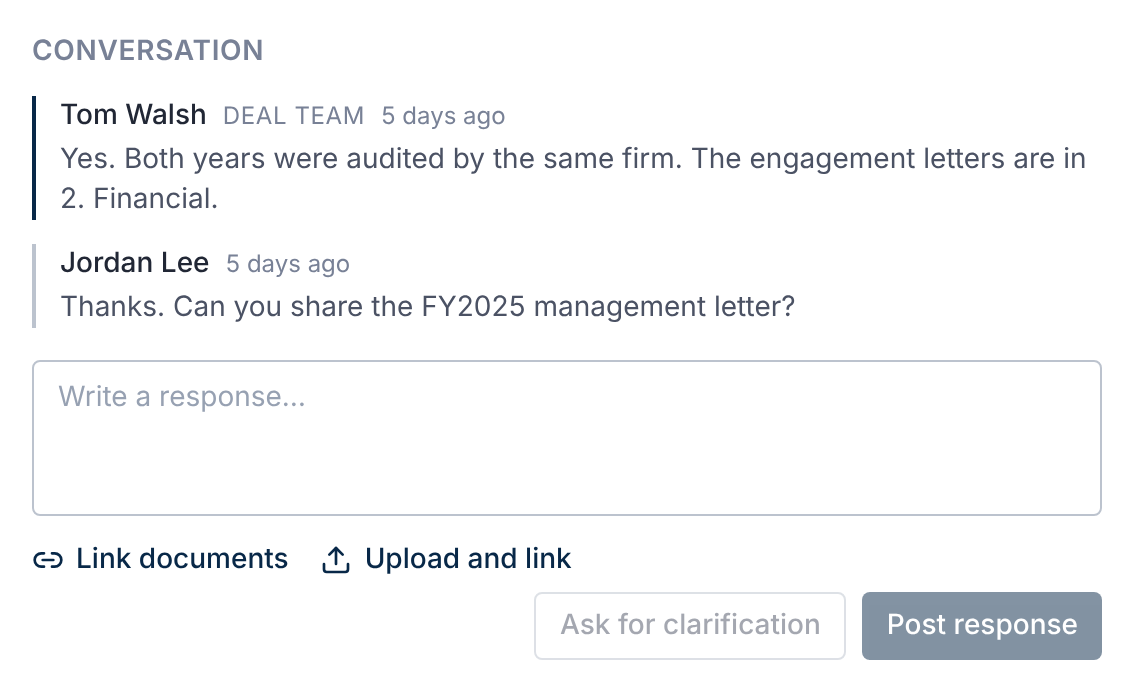
The question moves to Answered, and the asker is notified.
If the asker can't open a linked file, a warning names it. Check that folder's permissions before you post.
Ask for Clarification
Write what you need to know, then select Ask for clarification.
The question moves to Needs info, and the asker is notified. Their reply sends it back to Open.
You can still answer while you wait.
Assign, Prioritize and Categorize
In the question's Details, set Assigned to, Priority and Category.
The person you assign is notified. Choose Assigned to me in the Q&A rail to see your own queue.
Share, Publish, Close or Delete
These need Edit Q&A.
- Visibility: Shared shows the question to everyone who can ask questions. Only the asker can post in it.
- Publish to FAQ copies an answered question to the FAQ, without the asker's name.
- Close question and Reopen end or resume a conversation.
- More actions → Delete removes a question from every list. Restore it from Deleted.
In Published FAQ, Add Entry writes an FAQ entry directly.
Publishing copies the question's wording as written. Edit the FAQ entry if it names the asker's company.
Set Up Categories and Limits
Deal Settings → Communication → Question Categories lists the categories askers can pick.
To cap questions, open a permission set and find Submission limits → Question limits. Set Per day, Per week, Per month or Total. Blank means unlimited.
People who can answer questions are never limited.
Export the Q&A Log
Select Export to download every question and message as an Excel file.
Questions
- Can colleagues of the asker see a question?
- No. A question is private to the asker and the deal team until you share it or publish it.