Submit a Request
- 1.Select Requests in the sidebar, then Submit Request.
- 2.Add a Title if you like. Without one, it uses the first line or the file's name.
- 3.Under Request, describe the documents or information you need.
- 4.Or attach a request list: PDF, DOCX, CSV, XLSX or TXT, up to 15 MB.
- 5.Select Submit Request.
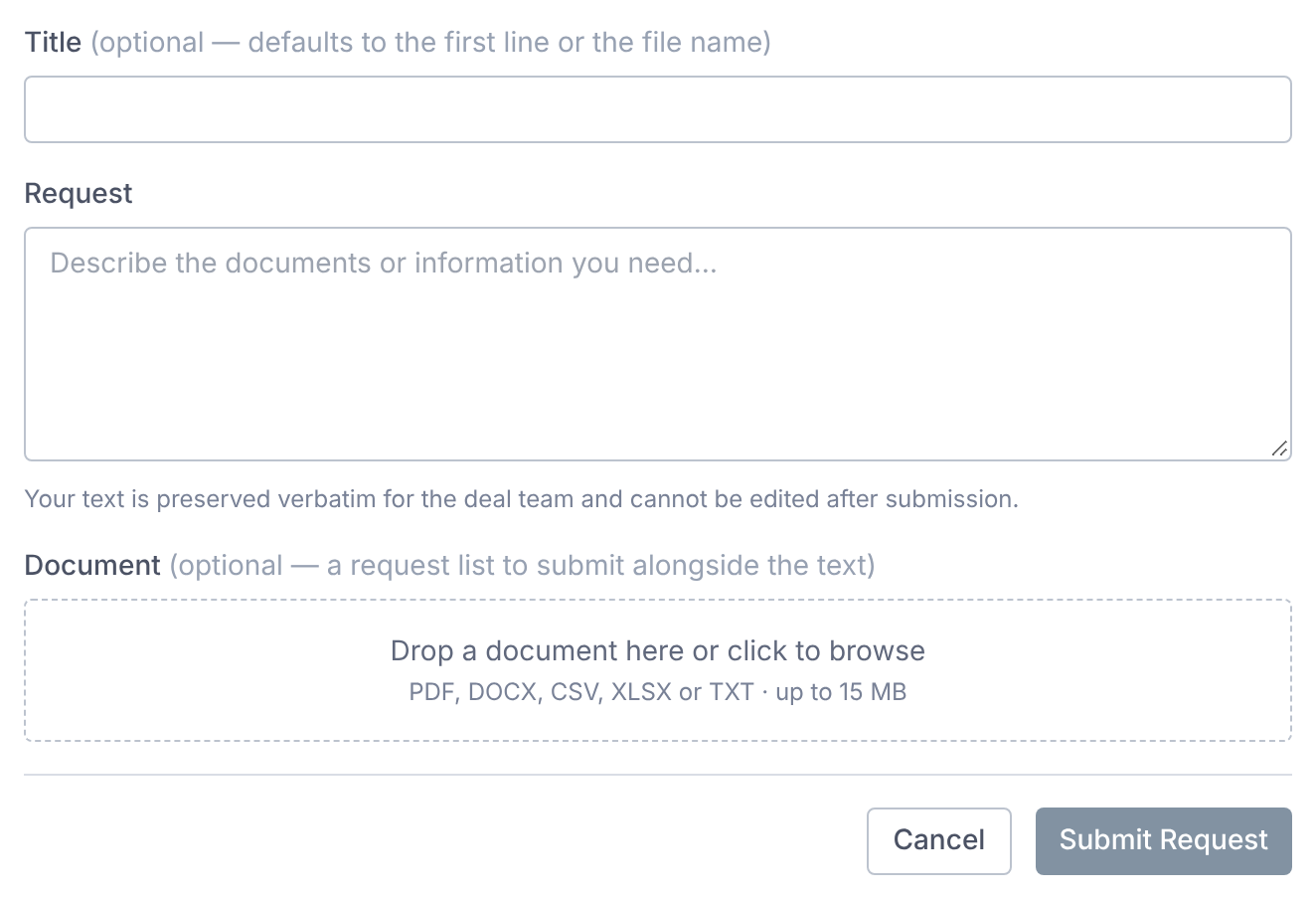
You can also select Create Request in the data room toolbar. It opens the same form.
Your text is kept word for word for the deal team. It can't be edited after you submit it.
Follow Its Status
Each request gets a number, such as R-001, and a status.
| Status | What it means |
|---|---|
| In Review | The deal team is reviewing it. |
| Open | Accepted, and being worked on. |
| Partially Fulfilled | Some of what you asked for is in the room. |
| Fulfilled | Everything you asked for is in the room. |
| Closed | The deal team closed it. |
| Rejected | The deal team won't provide it. |
| Withdrawn | The deal team withdrew it. |
| Consolidated | Combined with another request the deal team is handling. |
Select a request to see its checklist items, with the files filed against each one.
Add a note to the deal team in its Comments section.
What You're Told
You get an email when the deal team receives your request. Its subject starts Request Received.
The bell tells you when a request is fulfilled, partly fulfilled, closed, rejected or combined with another.
Export Your Requests
Select Export to download my-requests.xlsx, with each request's status and progress.
If You Don't See Requests
The deal team hasn't turned Requests on, or your access doesn't include them.
You can still ask for a document through Q&A, if your access includes asking questions.
Questions
- Can I withdraw a request?
- Not yourself. Ask the deal team in the request's Comments, and they can withdraw it.
- Can other bidders see my request?
- They don't see your request. If the deal team creates a checklist item from your wording, everyone with checklist access sees that item.