
Filter the List
- 1.In All Files, select Filters, the sliders icon at the right end of Search documents.
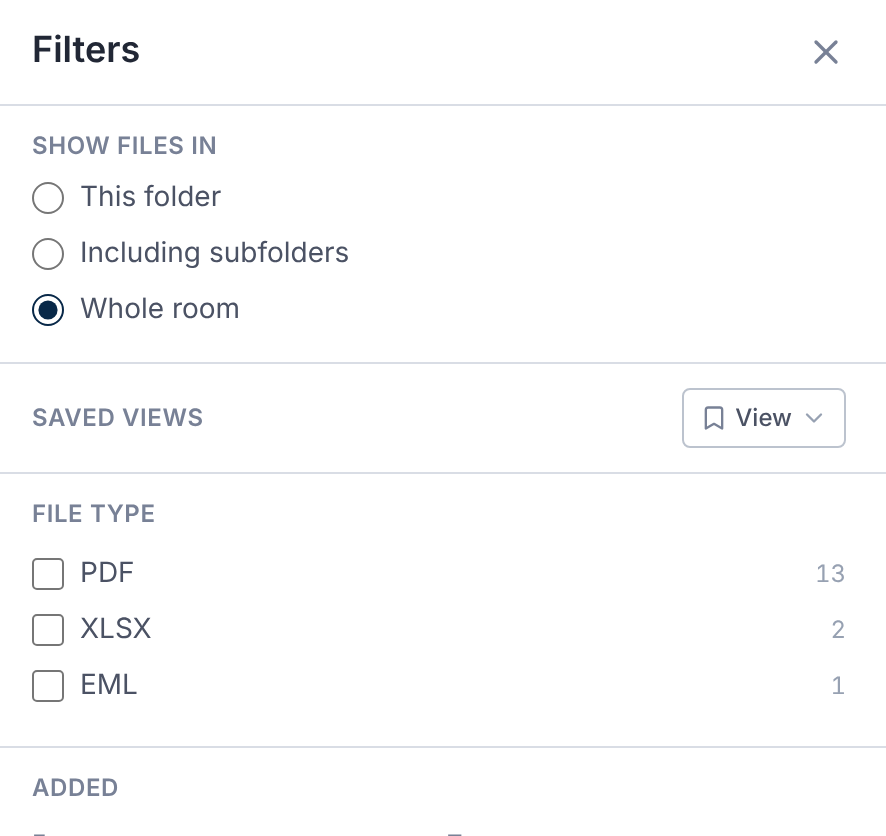
- 2.In the Filters panel, find a filter such as File type, Added, Read status or Named party.
- 3.Pick the values you want. Each lists only what you can see. Outside a search, it shows how many files match.
- 4.Close the panel with its ×, Escape, or a click on the list. Changes apply at once.
The Filters icon shows how many filters are on. Active filters also show as chips under the toolbar.
Select a chip to change it, or its × to remove it. Clear all removes every filter.
Filters combine with each other and with search. Outside a search, the toolbar shows how many files match.
What You Can Filter By
- File type, Added, Updated, Size and Pages.
- Read status: Unread, New, Updated or Not viewed by me.
- More than one version.
- Checklist item, Checklist category, Category and Document type.
- Named party: people and organizations named in documents.
- Tag and AI flag, where your access includes them.
Choose Where to Look
In the Filters panel, under Show files in, choose This folder, Including subfolders or Whole room.
During a search, it offers This folder or Whole room.
A filtered list can be shared as a link. Whoever opens it sees only what their own access allows.
Choose Columns and Sort
Select Columns at the right end of the column headings. Show, hide and reorder columns, or Reset to default.
Extra columns include Added, Size, Pages, Version, Tags, Category and Document type, depending on your access.
Select a column heading to sort by it. Your columns and sort are saved for you in each deal, on any device.
On a phone, the list shows the name and date only.
Save a View
Open Filters. Under Saved views, select View, then Save as new view…, and give it a name.
A view keeps the filters, folder scope, columns and sort.
Open the same menu to return to a view, or to Update, Rename… or Delete view. Saved views are yours alone.
Deleting asks Delete this view? first. Select Delete to confirm. A deleted view can't be restored.
Export the List
Open Filters, select View under Saved views, then Export list to Excel. It exports the list you're looking at, with your chosen columns.
Select and Move With the Keyboard
- Shift-click a file's checkbox to select every file between it and the last one you selected.
- Arrow keys, or J and K, move between rows. Space selects, and Enter opens.
- Shift with an arrow extends the selection. Ctrl + A (⌘ + A on a Mac) selects everything, and Escape clears it.
- Press / anywhere to jump to search.
Select all, then Download, includes every file the list matches, not only the rows on screen.